

How to monitor a cron job with Centoculus
Short answer
A heartbeat monitor in Centoculus gives you a secret address that your cron job or backup calls after every run. If the call does not arrive within the expected period plus a grace period, you are alerted. Adding /fail to the address reports a failed run right away.
A cron job that silently stops is one of the most common causes of lost data: the backup has not run for weeks and nobody noticed. Other checks cannot see this, because nothing is down. A heartbeat turns it around: your job reports in after every run, and Centoculus alerts you when the report does not come.
Step by step
1. Choose the check type Cron / heartbeat
Open Monitors, click New monitor and choose Cron / heartbeat. There is no target and no check location to set: your job calls Centoculus, not the other way round.
2. Set the period and grace period
Under Expected every choose how often your job runs: from 1 minute to 1 week (1, 5, 10, 15 and 30 minutes, 1, 2, 6 and 12 hours, 1 day, 1 week). The default is 1 hour. Under Grace period choose how long to wait after the expected time before alerting: from 1 minute to 1 day, default 5 minutes. Choose a grace period longer than your job's usual run time.
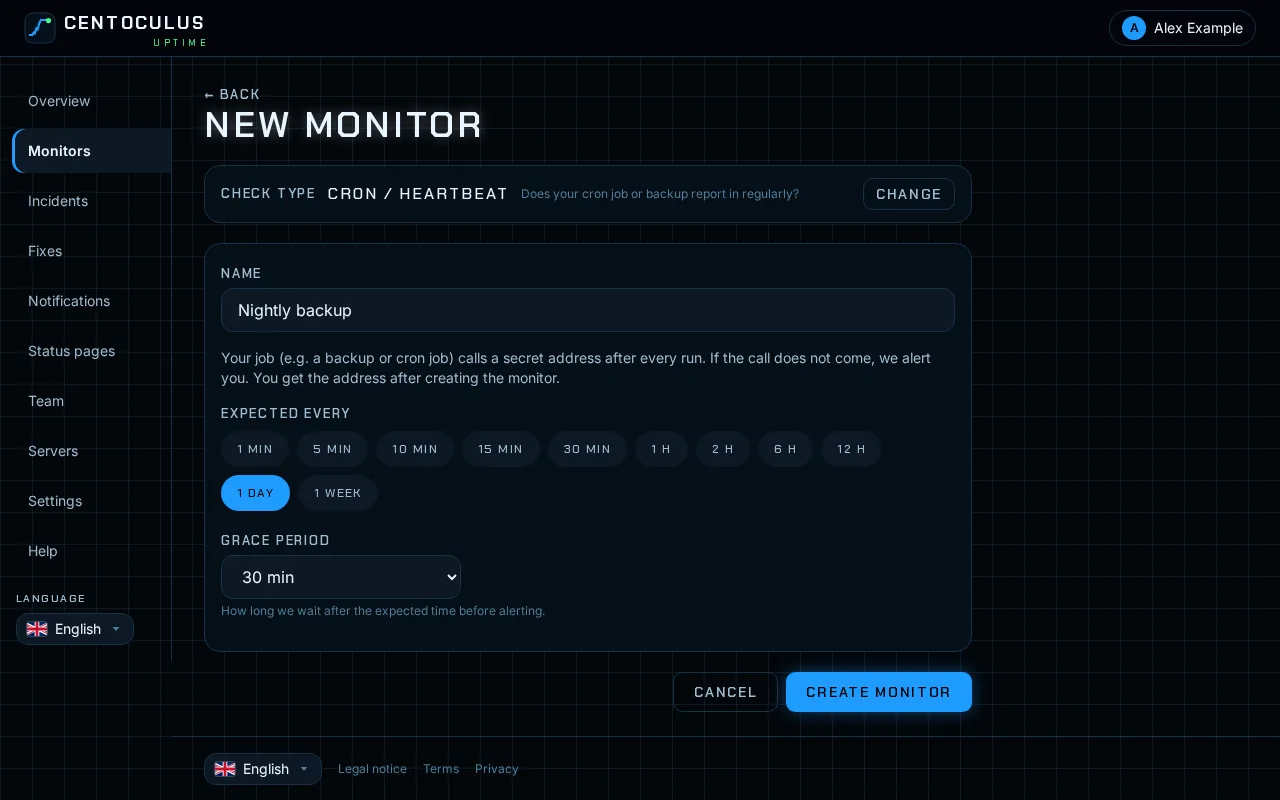
3. Create the monitor and copy the address
Click Create monitor. The monitor page shows the ping address, a secret URL, with ready-made examples. Copy it.
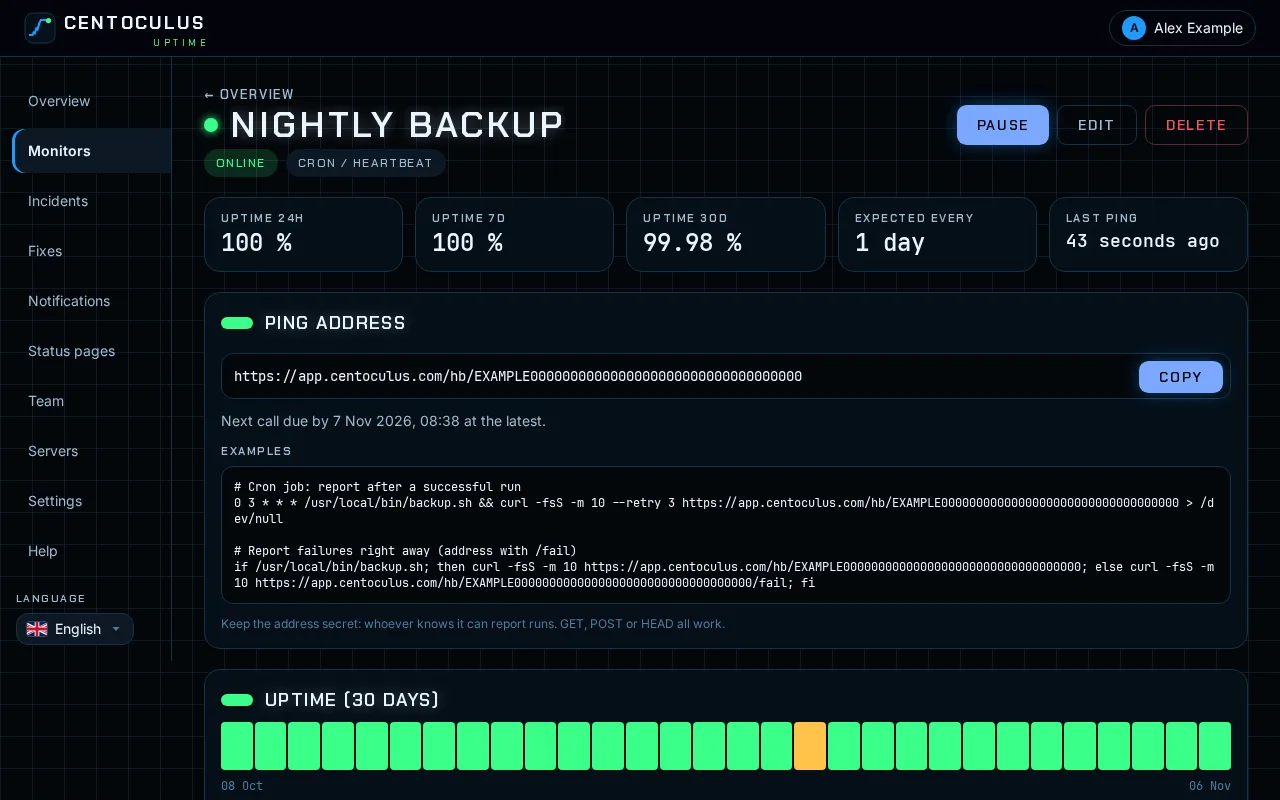
4. Call the address from your job
Add the call at the end of your job so it only runs after success. Replace the example address with yours:
0 3 * * * /usr/local/bin/backup.sh && curl -fsS -m 10 --retry 3 https://app.centoculus.com/hb/YOUR-ADDRESS > /dev/null
With wget instead of curl:
0 3 * * * /usr/local/bin/backup.sh && wget -q -O /dev/null https://app.centoculus.com/hb/YOUR-ADDRESS
To report a failure at once, call the address with /fail at the end:
if /usr/local/bin/backup.sh; then curl -fsS -m 10 https://app.centoculus.com/hb/YOUR-ADDRESS; else curl -fsS -m 10 https://app.centoculus.com/hb/YOUR-ADDRESS/fail; fi
5. Wait for the first call
Until the first call arrives the monitor waits and does not alert. After that, the page shows the last call and the deadline for the next one.
Fields and defaults
| Field | What it does | Default |
|---|---|---|
| Expected every | How often your job calls the address, 1 minute to 1 week | 1 hour |
| Grace period | Extra time after the expected call before alerting, 1 minute to 1 day | 5 minutes |
| Ping address | Secret URL your job calls; shown after creating | – |
Frequently asked questions
Which HTTP methods work?
GET, POST and HEAD all count as a call. Any tool that can request a URL works: curl, wget, PowerShell, a scheduled task, or an HTTP call from your application.
Is the address secret?
Yes. Whoever knows it can report runs, so keep it out of public repositories and logs.
How do I report an error from my script?
Call the address with /fail appended. The monitor reports the failure immediately instead of waiting for the deadline.
My job runs at irregular times. What do I set?
Set Expected every to the longest normal gap between runs and choose a generous grace period. The alert comes only when that time has passed without a call.
Does the heartbeat check whether my backup is complete?
No. It only knows that the call came. Put the call after the step that proves success, for example after the backup file was verified.
Related
More help pages
- How to monitor a website with Centoculus
- How to monitor SSL certificates with Centoculus
- How to monitor a host with ping in Centoculus
- How to monitor a TCP port with Centoculus
- How to monitor DNS records with Centoculus
- How to check SPF, DKIM and DMARC with Centoculus
- How to test email delivery with Centoculus
- How to monitor a server with the Centoculus agent
- How to set up check locations and alerts in Centoculus