

How to set up check locations and alerts in Centoculus
Short answer
Centoculus checks each monitor from several locations, such as Europe, Canada and Singapore. You are only alerted when enough checks and locations see the failure, or, with Smart Verify, when all other locations confirm the outage of the main location. Alerts go to all active notification channels at once: email, Telegram, webhook and push.
A single failed request is not an outage. Networks have short glitches, and one location can lose its route to your server while everyone else still reaches it. Centoculus therefore checks from several places and alerts only when the failure is confirmed. This page explains the settings that decide when you get an alert and where it goes.
Step by step
1. Choose the check locations
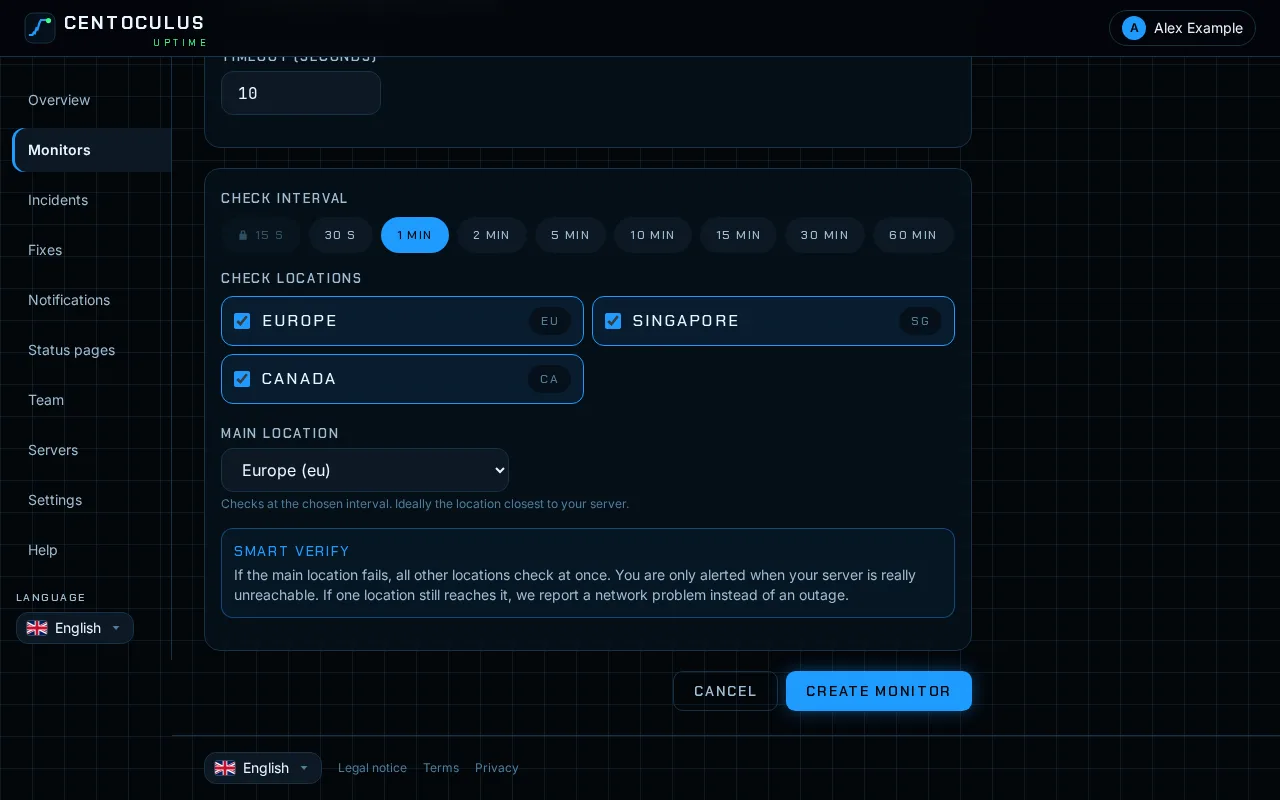
In the monitor form, under Check locations, tick the locations that check this monitor. Locations include Europe, Canada and Singapore. How many locations you can use per monitor depends on your plan.
2. Choose the main location and Smart Verify
With two or more locations you choose a main location. It checks at the chosen interval; ideally pick the location closest to your server. Once checks have run, the form suggests the location with the fastest answers.
With Smart Verify (depending on your plan), all other locations check at once when the main location fails. You are only alerted when your server is really unreachable. If one location still reaches it, a network problem is reported instead of an outage.
3. Or set the alert thresholds yourself
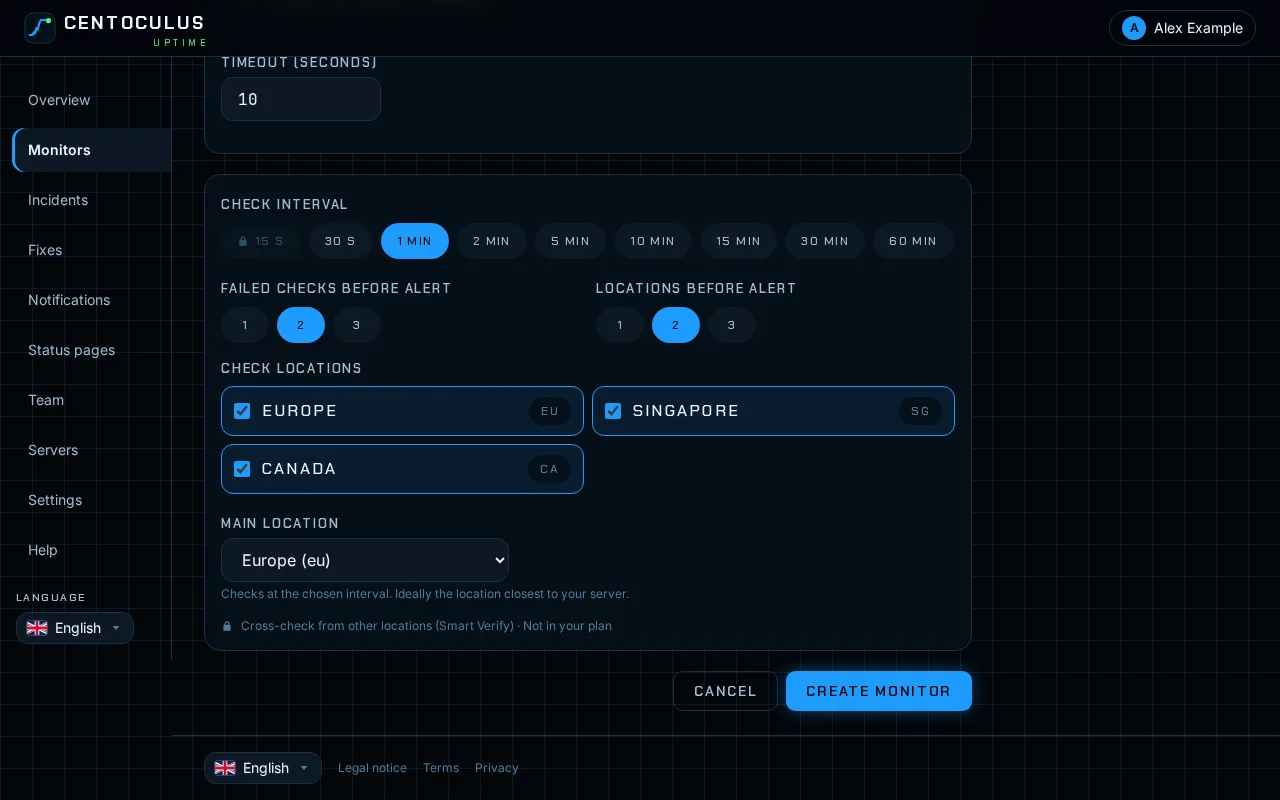
Without Smart Verify you set two thresholds. Failed checks before alert (1 to 3): how many checks in a row must fail. Locations before alert (1 to 3): at how many locations. You cannot require more locations than are selected. On some plans these values are fixed at 2 checks and 1 location.
4. Set up notification channels
Open Notifications and click Add channel. All active channels are notified at the same time. Click Send test to check a channel.
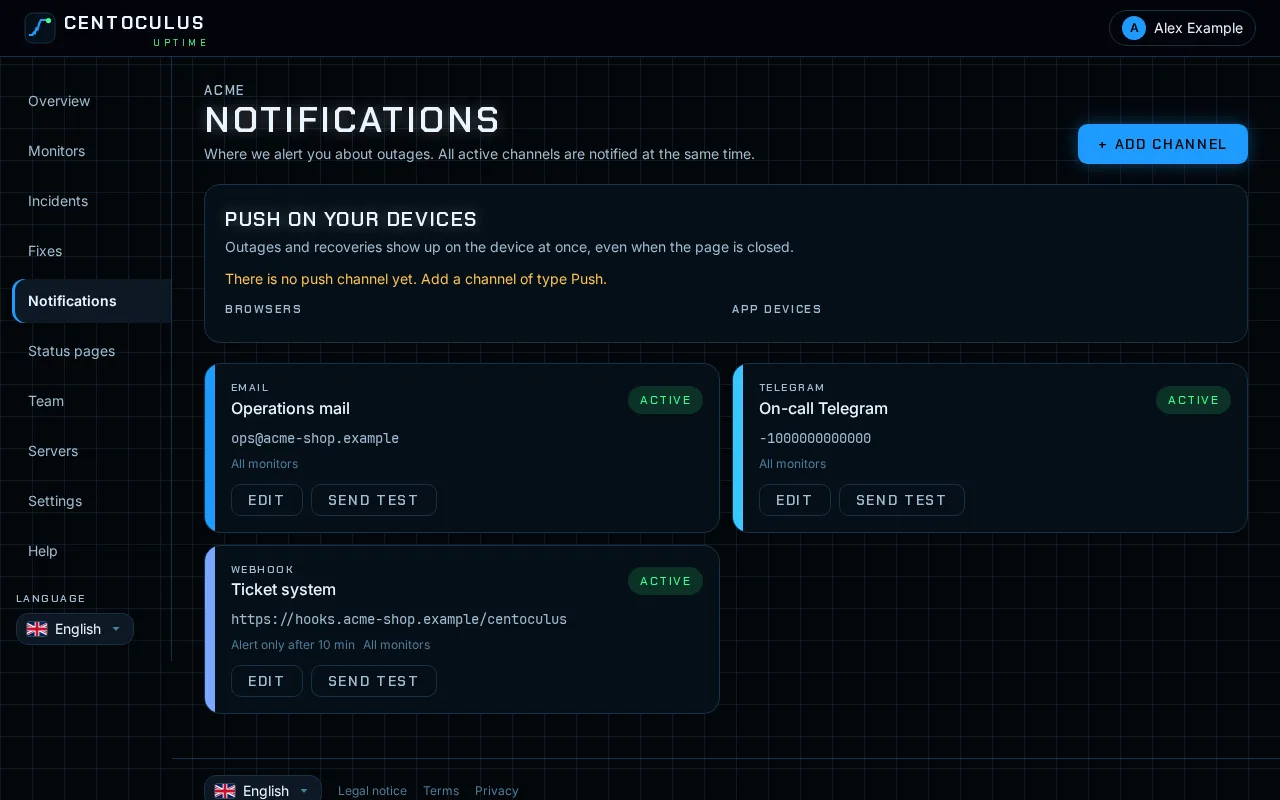
Notification channels
| Channel | What you enter | Note |
|---|---|---|
| Email address | Alerts go out after you confirm the address | |
| Telegram | Chat ID | Messages to a Telegram chat |
| Webhook | Webhook URL | Signed; verify the X-Webhook-Signature header with the secret shown once |
| Push | – | To every browser and app device on which you switched push on |
Each channel also has these options:
- Quiet hours: alerts during this time are held back until the quiet hours end.
- Alert only after: wait a number of minutes before this channel is notified, for example for a second escalation level.
- Also send recovery: a message when the monitor is up again.
- Applies to: all monitors or selected monitors.
Frequently asked questions
Why several locations?
Only when enough locations and checks see a failure are you alerted. Short network glitches on the way to one location therefore do not cause false alarms.
Which main location should I choose?
The one closest to your server. It gives the most representative response times. When you edit a monitor that has been running, the form suggests the location with the fastest answers.
What is the shortest check interval?
That depends on your plan. Shorter intervals are shown in the form but locked if your plan does not include them.
I got a "network problem" message. What does it mean?
With Smart Verify, the main location could not reach your server, but at least one other location could. The server is up; the problem lies on the network path to one location.
Do I get a message when it is fixed?
Yes, if Also send recovery is on for the channel. The incident on the monitor page shows start, end and duration.
Related
Free tool
Website down checkerMore help pages
- How to monitor a website with Centoculus
- How to monitor SSL certificates with Centoculus
- How to monitor a host with ping in Centoculus
- How to monitor a TCP port with Centoculus
- How to monitor DNS records with Centoculus
- How to monitor a cron job with Centoculus
- How to check SPF, DKIM and DMARC with Centoculus
- How to test email delivery with Centoculus
- How to monitor a server with the Centoculus agent