

How to test email delivery with Centoculus
Short answer
The mail delivery and spam test in Centoculus gives you a receiving address of your own. Your server or newsletter tool sends a test mail to it, and Centoculus checks whether it arrives, whether SPF, DKIM and DMARC pass, whether the sender is blacklisted and how two spam filters rate it. With a schedule, you are alerted when an expected mail does not arrive.
The DNS records can be perfect and mail still ends up in spam: a blacklisted server, a broken signature, a missing unsubscribe header. The check type Mail delivery and spam test looks at a real mail as receivers see it. Use it on a schedule to know that your server still sends, or on demand before a newsletter goes out.
Step by step
1. Choose the check type Mail delivery and spam test
Open Monitors, click New monitor and choose Mail delivery and spam test.
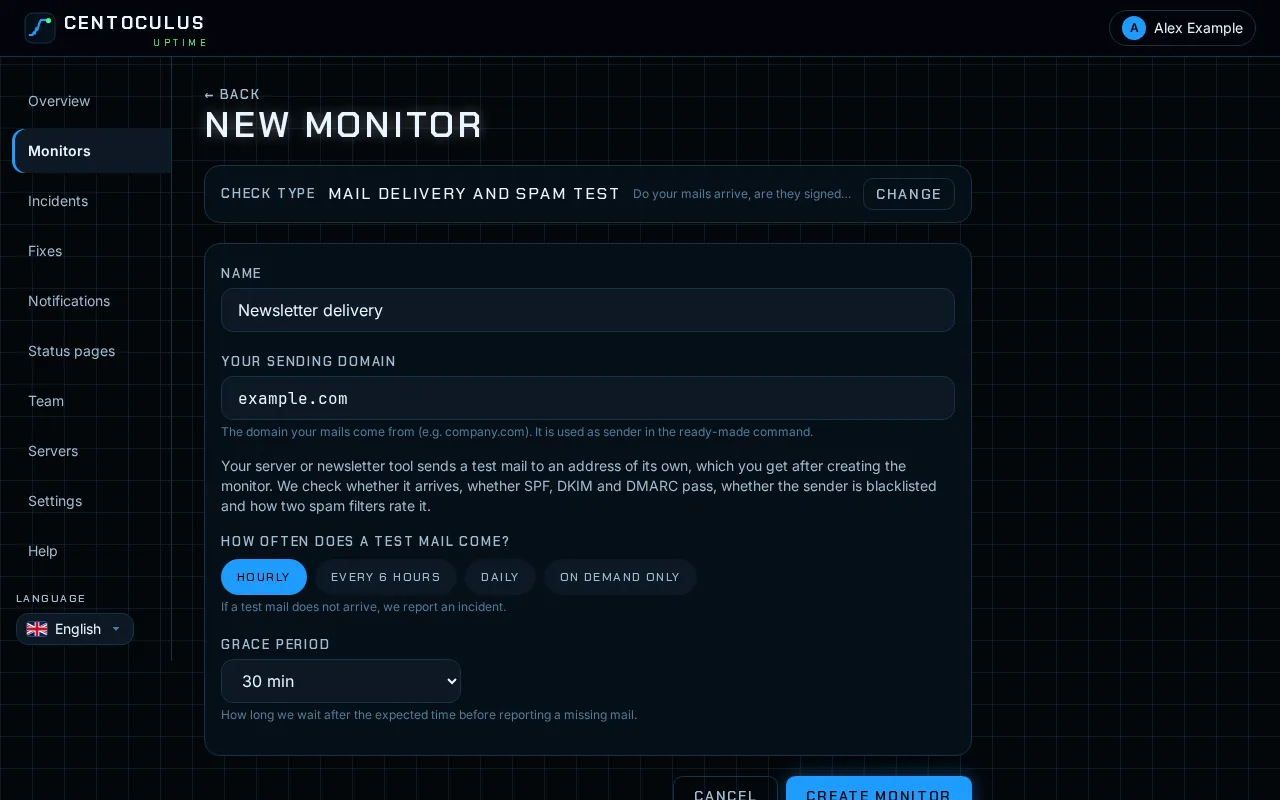
2. Enter the sending domain and the schedule
Under Your sending domain enter the domain your mails come from, for example example.com. Under How often does a test mail come? choose Hourly, Every 6 hours, Daily or On demand only. With a schedule, set the grace period: how long to wait after the expected time before reporting a missing mail (15 minutes to 6 hours, default 30 minutes).
3. Create the monitor and copy your address
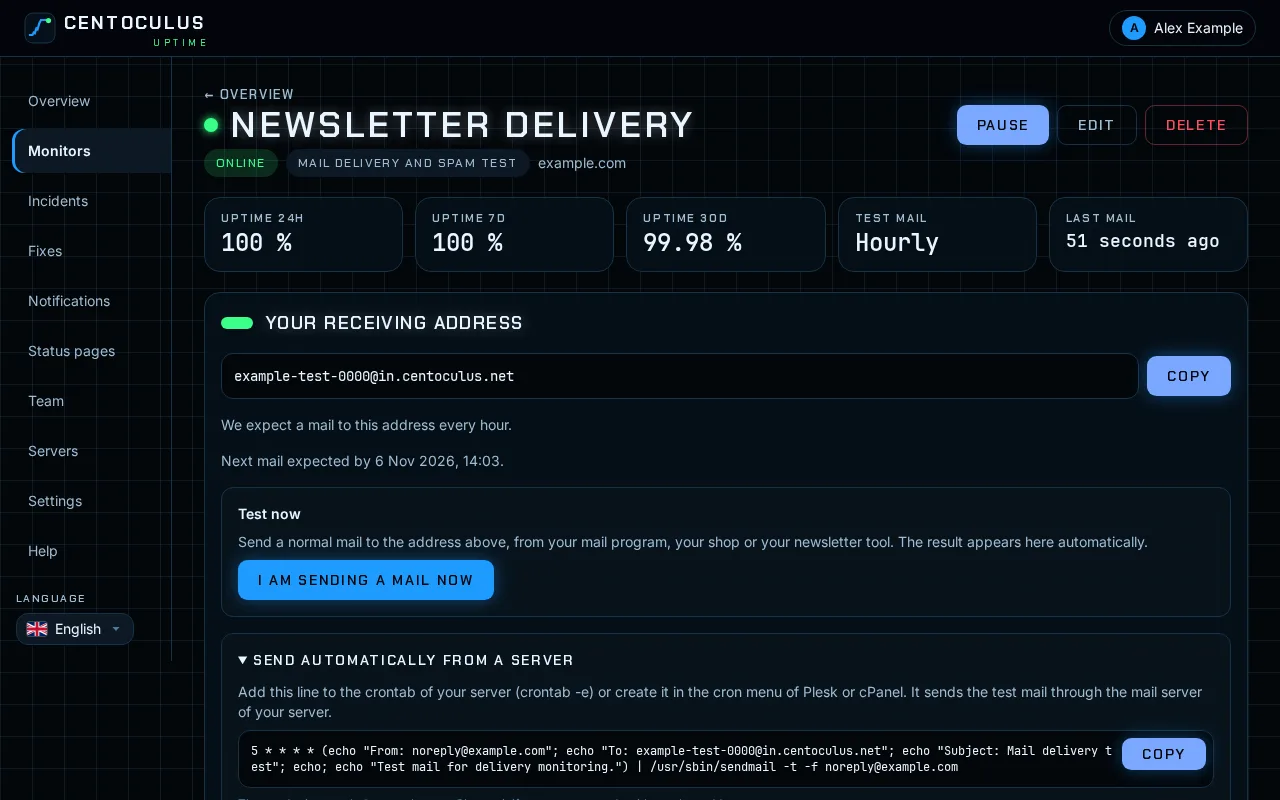
Click Create monitor. The monitor page shows Your receiving address. Mails to this address are analysed for this monitor.
4. Send test mails
- From a server on a schedule: copy the ready-made cron line and add it with
crontab -e, or in the cron menu of Plesk or cPanel. It sends the test mail through the mail server of your server. The sender isnoreply@your domain; change it if your server sends with another address. - On demand: send a normal mail to the address from your mail program, your shop or your newsletter tool, then click I am sending a mail now. The result appears automatically.
5. Read the report
For every received mail the report shows an overall grade, the delivery time, the results of SPF, DKIM and DMARC, the sending server with its reverse DNS and encryption, blacklist results for the server and the links, the rating of the spam filters rspamd and SpamAssassin, and content findings such as missing alt texts, link shorteners or a missing one-click unsubscribe.
Fields and defaults
| Field | What it does | Default |
|---|---|---|
| Your sending domain | Domain your mails come from; used as sender in the cron line | – |
| How often does a test mail come? | Hourly, every 6 hours, daily or on demand only | Hourly |
| Grace period | Wait after the expected time before reporting a missing mail | 30 minutes |
| Your receiving address | Address of this monitor; shown after creating | – |
Frequently asked questions
What happens if a scheduled mail does not arrive?
When the expected time plus the grace period has passed without a mail, an incident is opened and you are notified.
Does "On demand only" send alerts?
No. On demand there is no schedule to miss. You get the report for each mail you send, for example before sending a newsletter.
Why does the report show a blacklisted server I do not know?
That can be a server earlier on the way, often from an address range of your provider. It costs a little score but usually does not affect delivery. A blacklisted server that delivered the mail is the serious case.
Why does Gmail clip my newsletter?
Gmail shows only the beginning of mails whose HTML part is larger than 102 KB. The report warns when your mail is above that size.
How is this different from the mail domain check?
The mail domain check checks the DNS records of your domain. The delivery test checks real mails. Use both: one shows what is set, the other what arrives.
Related
Free tool
SPF, DKIM and DMARC checkerMore help pages
- How to monitor a website with Centoculus
- How to monitor SSL certificates with Centoculus
- How to monitor a host with ping in Centoculus
- How to monitor a TCP port with Centoculus
- How to monitor DNS records with Centoculus
- How to monitor a cron job with Centoculus
- How to check SPF, DKIM and DMARC with Centoculus
- How to monitor a server with the Centoculus agent
- How to set up check locations and alerts in Centoculus