

How to monitor DNS records with Centoculus
Short answer
A DNS monitor in Centoculus resolves a domain name for one record type (A, AAAA, MX, TXT and others) from several check locations and compares the answer with the values you expect. If a value is missing or the lookup fails, you are alerted, for example after an unwanted change at the DNS provider.
DNS errors take everything down at once: website, mail, API. A DNS monitor checks that a name resolves and that the answer contains the right values. It catches expired domains, accidental changes in the DNS zone and name servers that stop answering.
Step by step
1. Choose the check type DNS
Open Monitors, click New monitor and choose DNS.
2. Enter the name and record type
Enter the host name, for example www.example.com, and choose the record type. Available are A, AAAA, MX, NS, TXT, CNAME, SOA, SRV, PTR and CAA. The default is A.
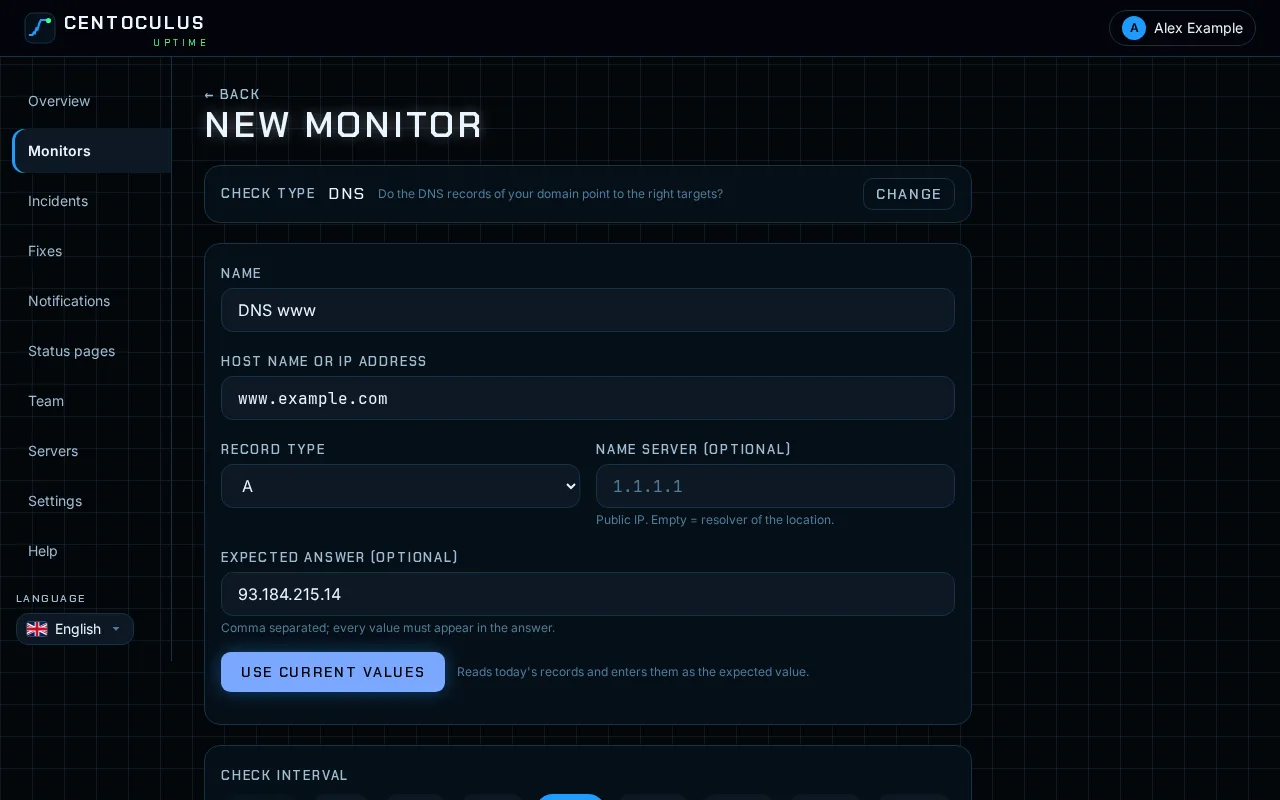
3. Set the expected answer
Under Expected answer enter the values the answer must contain, separated by commas. Every value must appear in the answer. Click Use current values to read today's records and fill them in. Leave the field empty if the name only has to resolve.
4. Optional: a specific name server
Under Name server enter the public IP address of a specific name server, for example your provider's authoritative server. Empty means the resolver of each check location is used. Each lookup waits up to 5 seconds for an answer.
5. Create and check the result
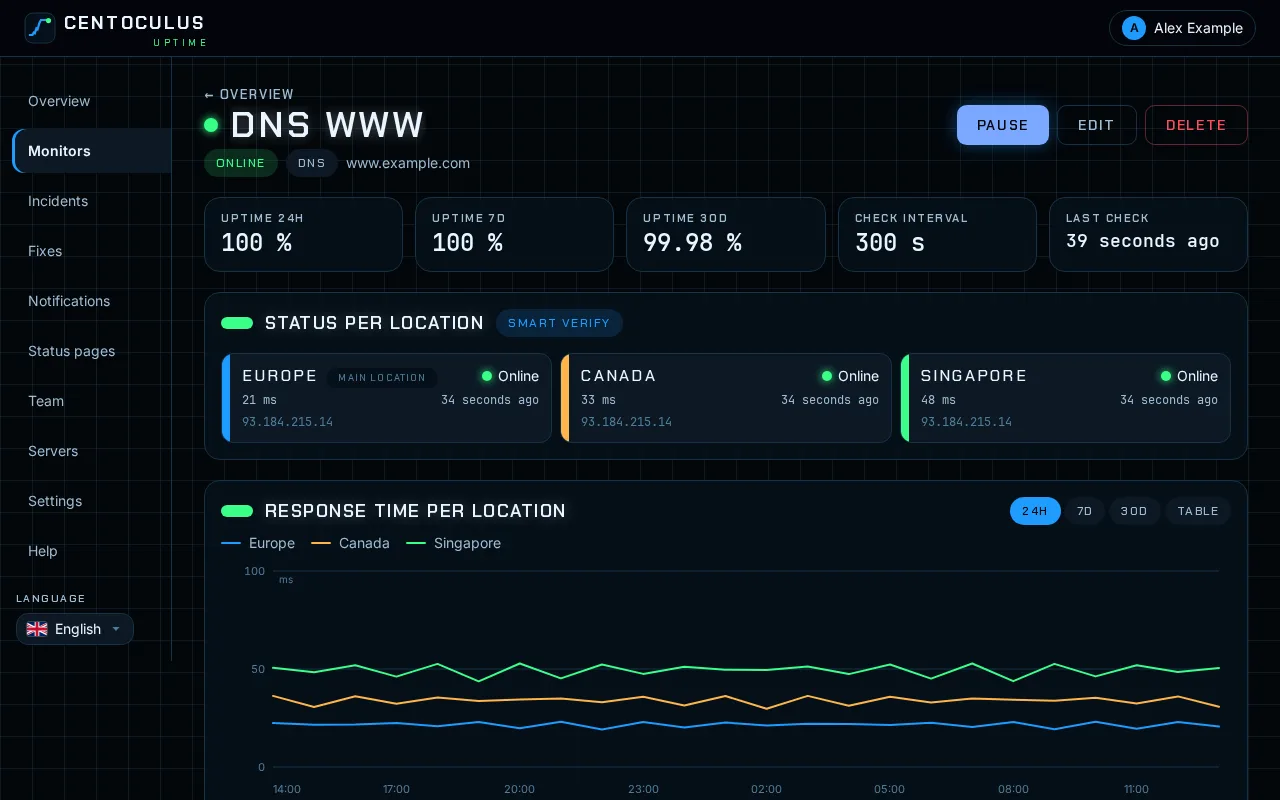
Click Create monitor. The monitor page shows the answer each location received.
Fields and defaults
| Field | What it does | Default |
|---|---|---|
| Host name | Name that is resolved | – |
| Record type | A, AAAA, MX, NS, TXT, CNAME, SOA, SRV, PTR or CAA | A |
| Name server | Public IP of the name server to ask | resolver of the location |
| Expected answer | Comma-separated values that must appear | empty |
| Check interval | How often the lookup runs | 5 minutes, depending on your plan |
Frequently asked questions
Why ask a specific name server?
Resolvers cache answers. A change at your DNS provider shows up there only after the TTL expires. Asking the authoritative name server directly shows changes immediately.
What should I enter for MX or TXT records?
The values as they appear in the answer, for example the mail server name for MX. Use Use current values to see the exact format and keep only the values that matter.
The domain does not resolve at all. What now?
Check that the domain is registered and not expired, and that the name servers at the registrar are correct. The guide on DNS_PROBE_FINISHED_NXDOMAIN goes through it step by step.
Is this the same as the email domain check?
No. The DNS monitor checks one record type against your values. The email domain check evaluates SPF, DKIM and DMARC together and tells you what to fix.
Related
Free tool
Website down checkerMore help pages
- How to monitor a website with Centoculus
- How to monitor SSL certificates with Centoculus
- How to monitor a host with ping in Centoculus
- How to monitor a TCP port with Centoculus
- How to monitor a cron job with Centoculus
- How to check SPF, DKIM and DMARC with Centoculus
- How to test email delivery with Centoculus
- How to monitor a server with the Centoculus agent
- How to set up check locations and alerts in Centoculus