

How to monitor a server with the Centoculus agent
Short answer
The Centoculus server agent is a small program on your Linux server that measures load, memory, disks, network and services and sends the values encrypted to Centoculus. It is installed with one command, connects outbound only on TCP port 10061 and needs no open incoming port. Ticked services alert you when they stop.
Checks from outside show that a website answers. They do not show that the disk is 95 percent full, that memory runs out or that the database service has stopped. The server agent watches your server from the inside and alerts you before such problems take the site down.
Step by step
1. Add the server
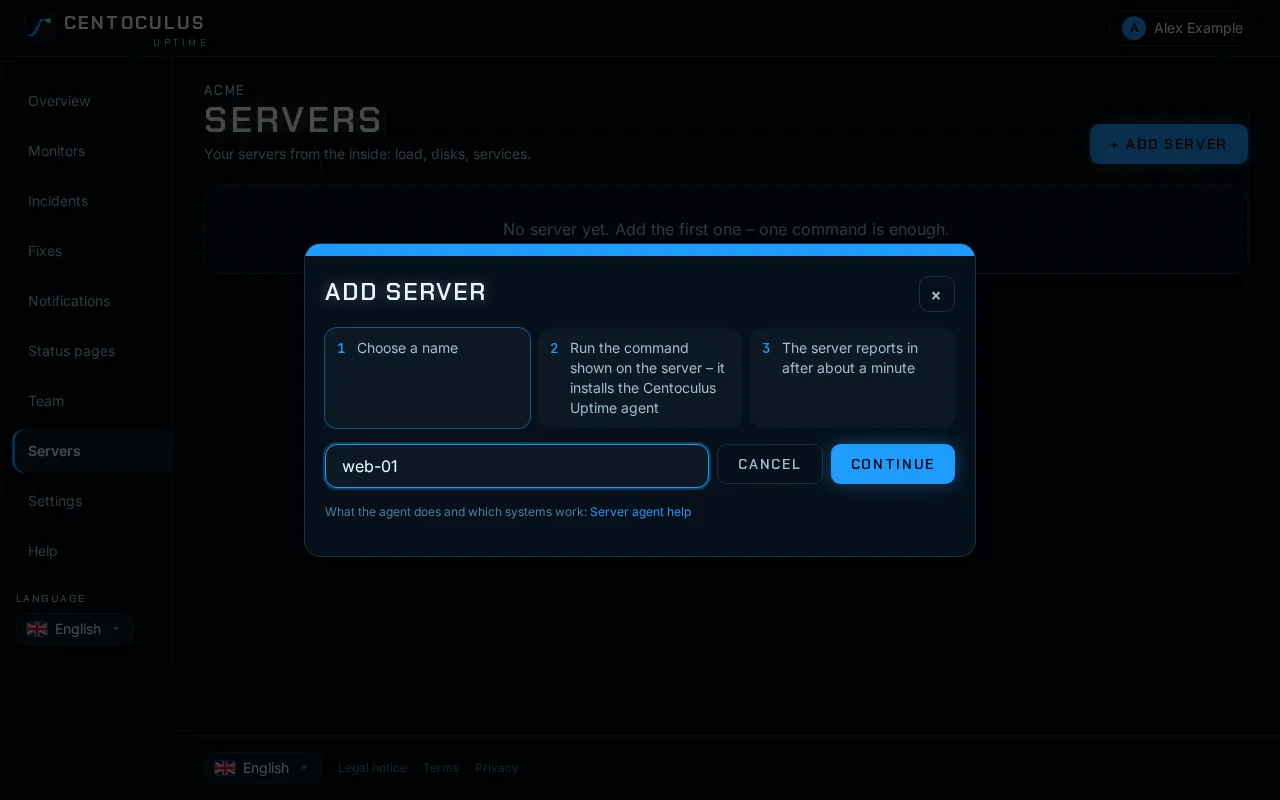
In the app open Servers, click Add server and enter a name, for example web-01. Click Continue.
2. Run the install command
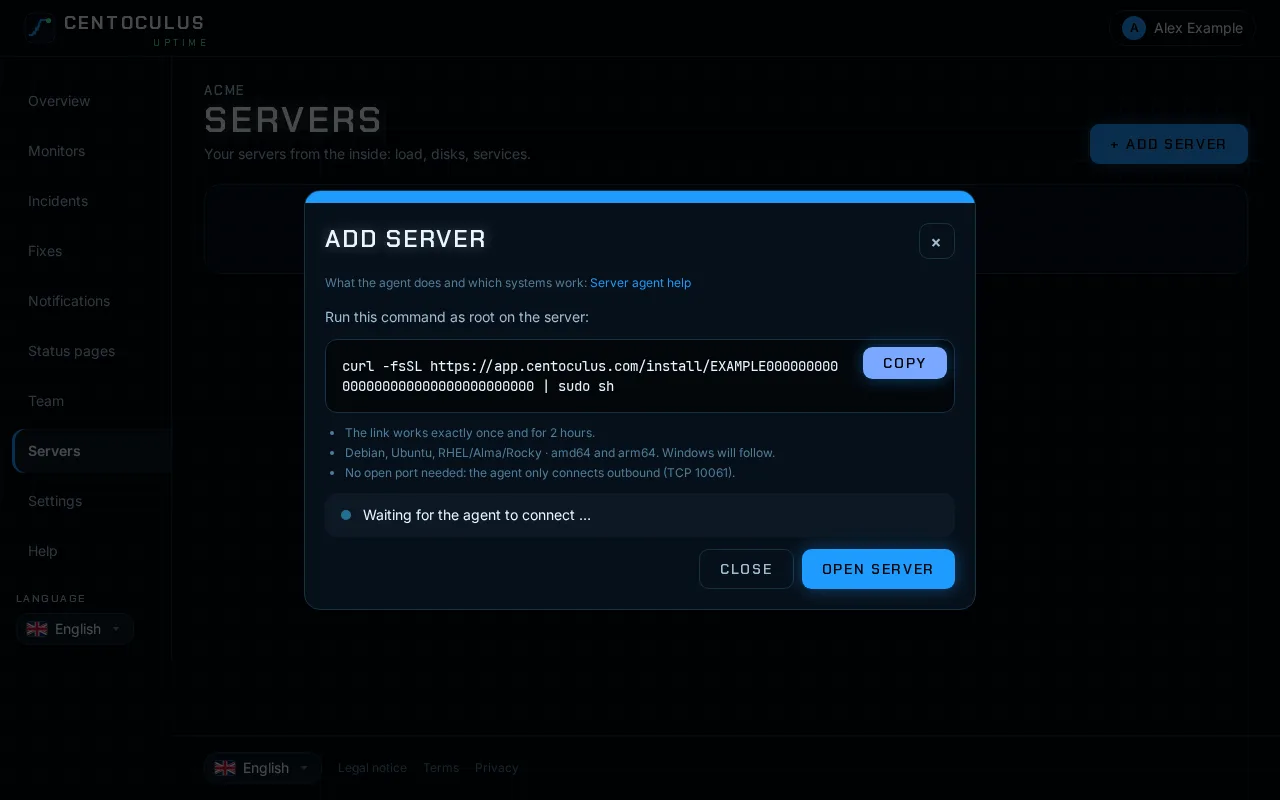
The dialog shows an install command. Run it as root (with sudo) on the server. It looks like this:
curl -fsSL https://app.centoculus.com/install/… | sudo sh
For security, every command works once and for 2 hours. If it has expired, open the server and click New install command.
3. Wait for the first values
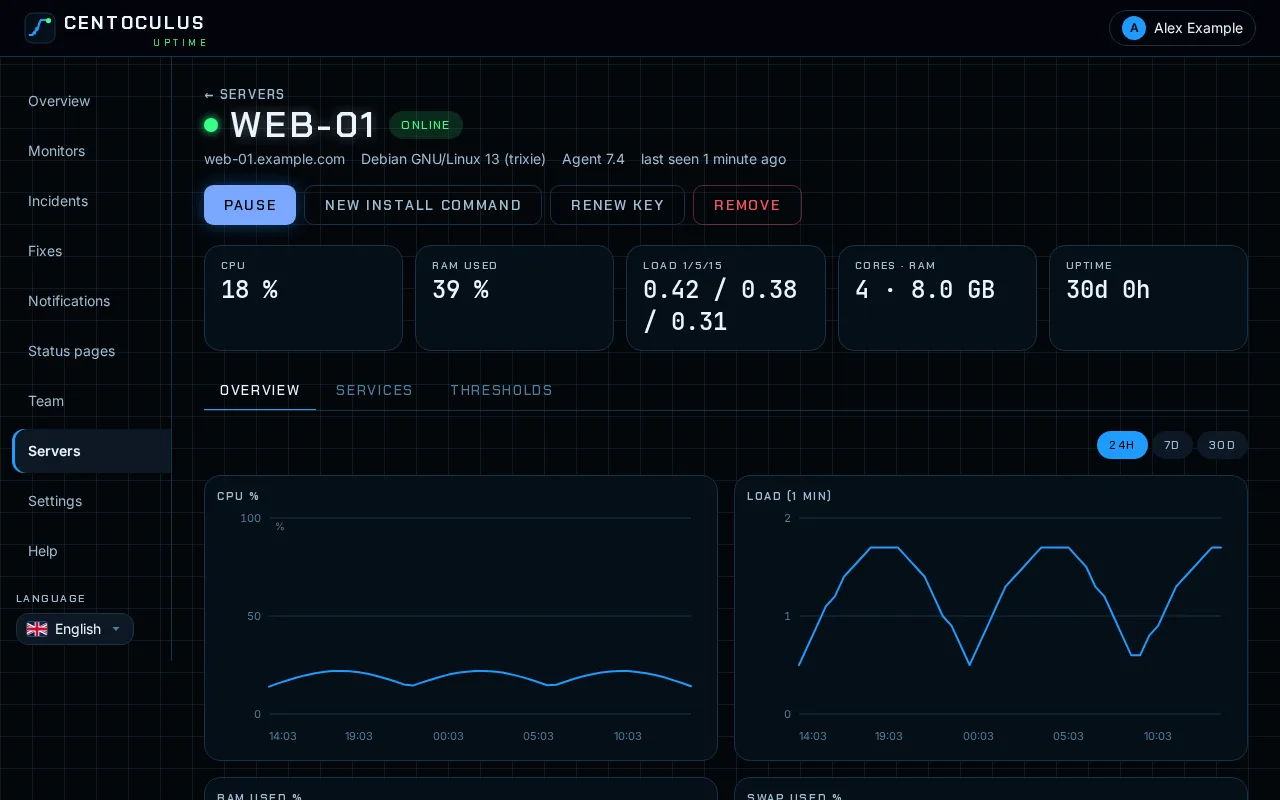
The server is online after about a minute. Services, disks and network cards appear within five minutes. The server page then shows CPU, memory, load, disks and network over 24 hours, 7 or 30 days.
4. Choose the services to monitor
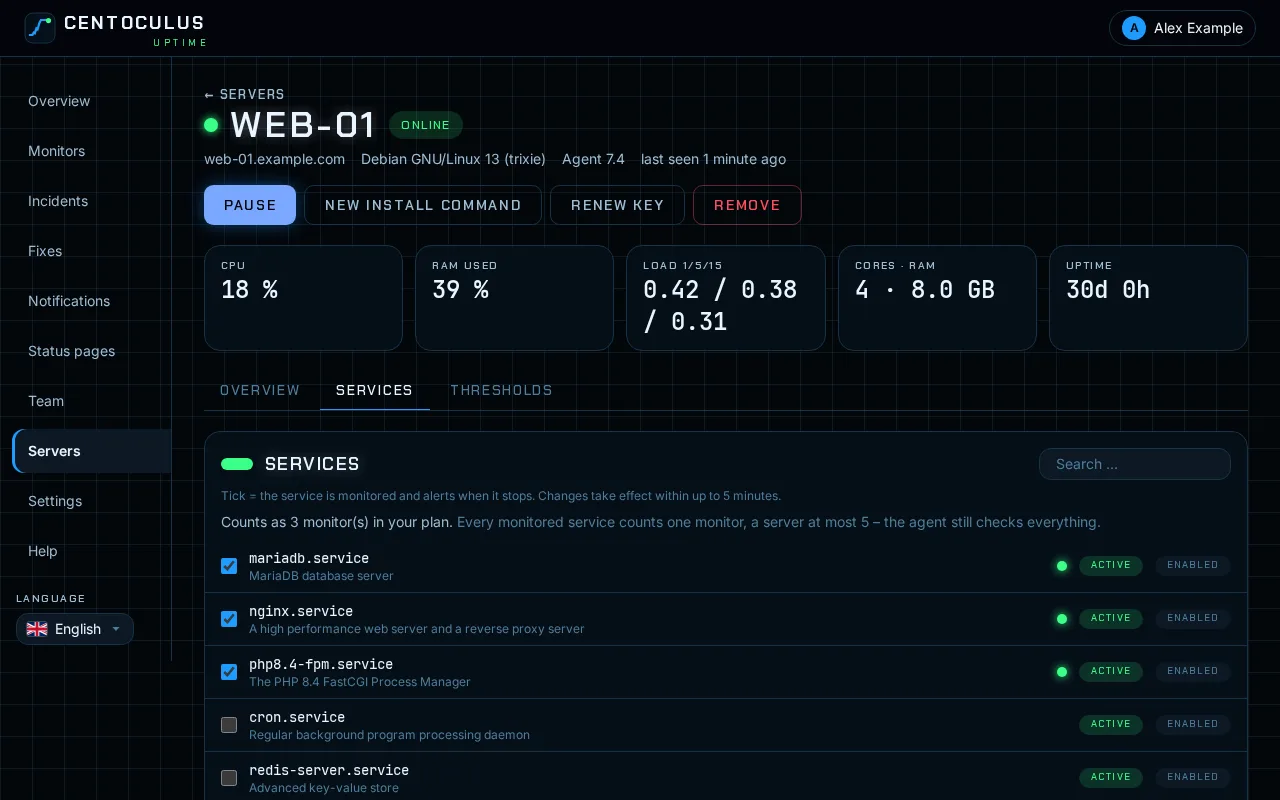
On the tab Services tick the services that must keep running, for example nginx.service or mariadb.service. If a ticked service stops, an incident is opened and you are notified. Each monitored service counts towards the monitors of your plan.
5. Adjust thresholds if needed
On the tab Thresholds you set when the agent alerts. Changes take effect within up to 5 minutes.
What the install command does
It sets up a signed package source (apt, dnf/yum, zypper or apk), installs the agent package from it, writes the configuration to /etc/centoculus and starts the service. The agent then updates itself daily from this source; other packages on your server stay untouched. It needs root. Running it again does no harm.
Supported systems
Linux with systemd or OpenRC: Debian 10 and later, Ubuntu 18.04 and later, RHEL, AlmaLinux and Rocky Linux 8 and later, Fedora, openSUSE and SLES, and Alpine, each on amd64 and arm64. Windows will follow.
Thresholds and defaults
| Threshold | Default |
|---|---|
| CPU alert from | 90 % |
| Load per core from | 2 |
| Free RAM below | 10 % |
| Disk warning from | 85 % |
| Disk critical from | 95 % |
| Inode warning from | 90 % |
| Offline after | 5 minutes without data |
Frequently asked questions
Do I need to open the firewall?
No incoming port. The agent only connects outbound to TCP port 10061. If outbound traffic is restricted, allow this port.
Is the data encrypted?
Yes. Every server has its own key, and the values are sent encrypted. You can renew the key on the server page; the agent then has to be set up again with a new command.
Why are no services listed?
The service list needs systemd and arrives up to five minutes after the agent connects.
How do I remove the agent?
Remove the server in the app; from then on the agent is rejected. Then uninstall it on the server:
# Debian/Ubuntu
sudo apt-get purge -y centoculus-agent2 centoculus-repo && sudo rm -rf /etc/centoculus
# RHEL/Alma/Rocky/Fedora
sudo dnf remove -y centoculus-agent2 centoculus-repo && sudo rm -rf /etc/centoculus
# SUSE
sudo zypper remove -y centoculus-agent2 centoculus-repo && sudo rm -rf /etc/centoculus
# Alpine
sudo apk del centoculus-agent2 centoculus-repo && sudo rm -rf /etc/centoculus
Agent or ping and website monitors?
Both. Outside checks show what your visitors see; the agent shows why. Read more about server monitoring.
Related
More help pages
- How to monitor a website with Centoculus
- How to monitor SSL certificates with Centoculus
- How to monitor a host with ping in Centoculus
- How to monitor a TCP port with Centoculus
- How to monitor DNS records with Centoculus
- How to monitor a cron job with Centoculus
- How to check SPF, DKIM and DMARC with Centoculus
- How to test email delivery with Centoculus
- How to set up check locations and alerts in Centoculus