

How to monitor SSL certificates with Centoculus
Short answer
The SSL certificate check in Centoculus connects to a host and port, reads the certificate and warns a set number of days before it expires; it also reports invalid certificates. For websites, the certificate check is built into the website monitor; the separate SSL type is for certificates without a website, such as mail servers on port 465 or 993.
An expired certificate takes a site or mail server down just as surely as a crash: browsers and mail programs refuse the connection. Centoculus checks certificates in two ways:
- In the website monitor. Every https website monitor checks its certificate by default. Nothing else to set up.
- As its own check type, SSL certificate. For certificates without a website: mail servers (for example ports 465, 993 or 995), other TLS services, or a certificate you want to watch on its own.
Step by step
1. Choose the check type SSL certificate
Open Monitors, click New monitor and choose SSL certificate.
2. Enter host and port
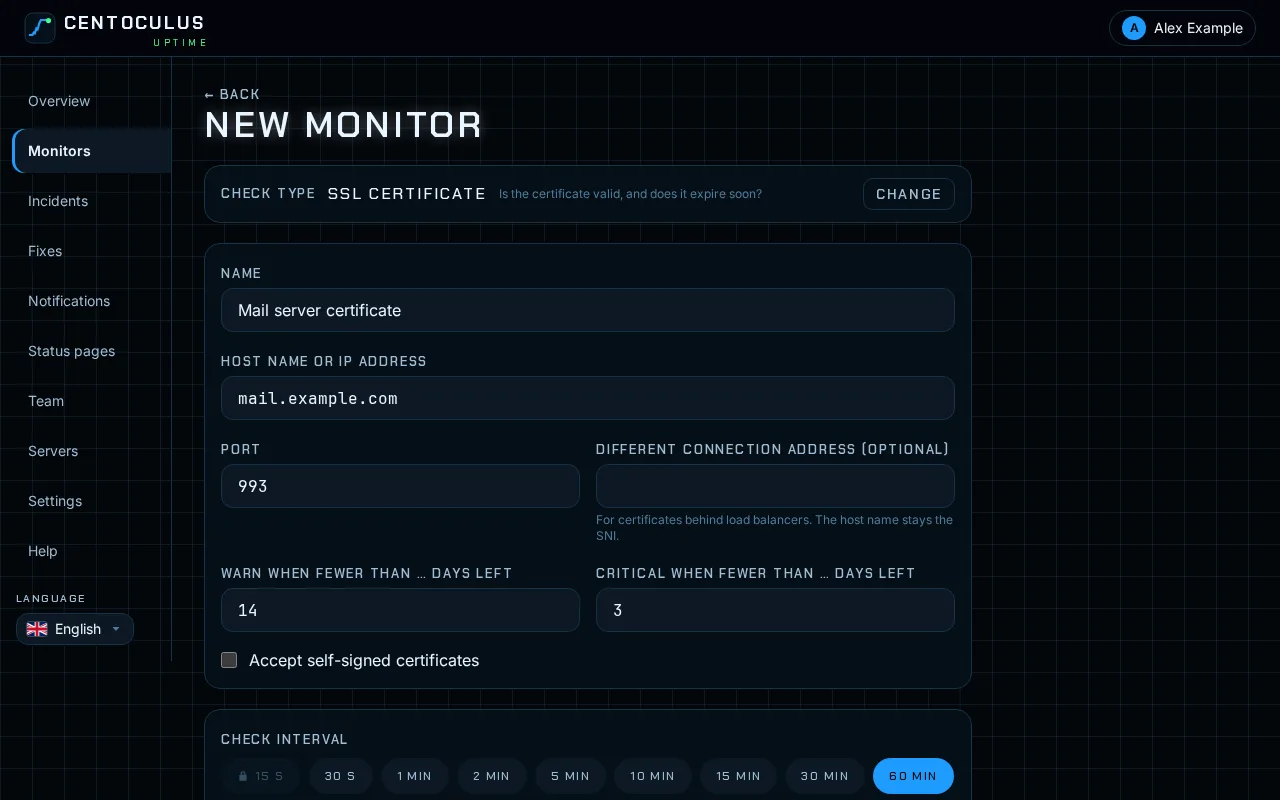
Enter the host name, for example mail.example.com, without https://. Set the port; it defaults to 443. For an IMAP server use 993, for SMTP with TLS 465.
3. Set warning and critical days
Warn when fewer than … days left defaults to 14, Critical when fewer than … days left to 3. The critical threshold must be lower than the warning threshold. Certificates that renew automatically (for example Let's Encrypt) are usually renewed 30 days before expiry, so a warning at 14 days means the renewal has failed.
4. Optional: self-signed certificates and a different address
Tick Accept self-signed certificates for internal services that use their own certificate. Under Different connection address you can connect to another address than the host name, for example a single server behind a load balancer. The host name is still sent as the server name (SNI), so the right certificate is returned.
5. Create and check the result
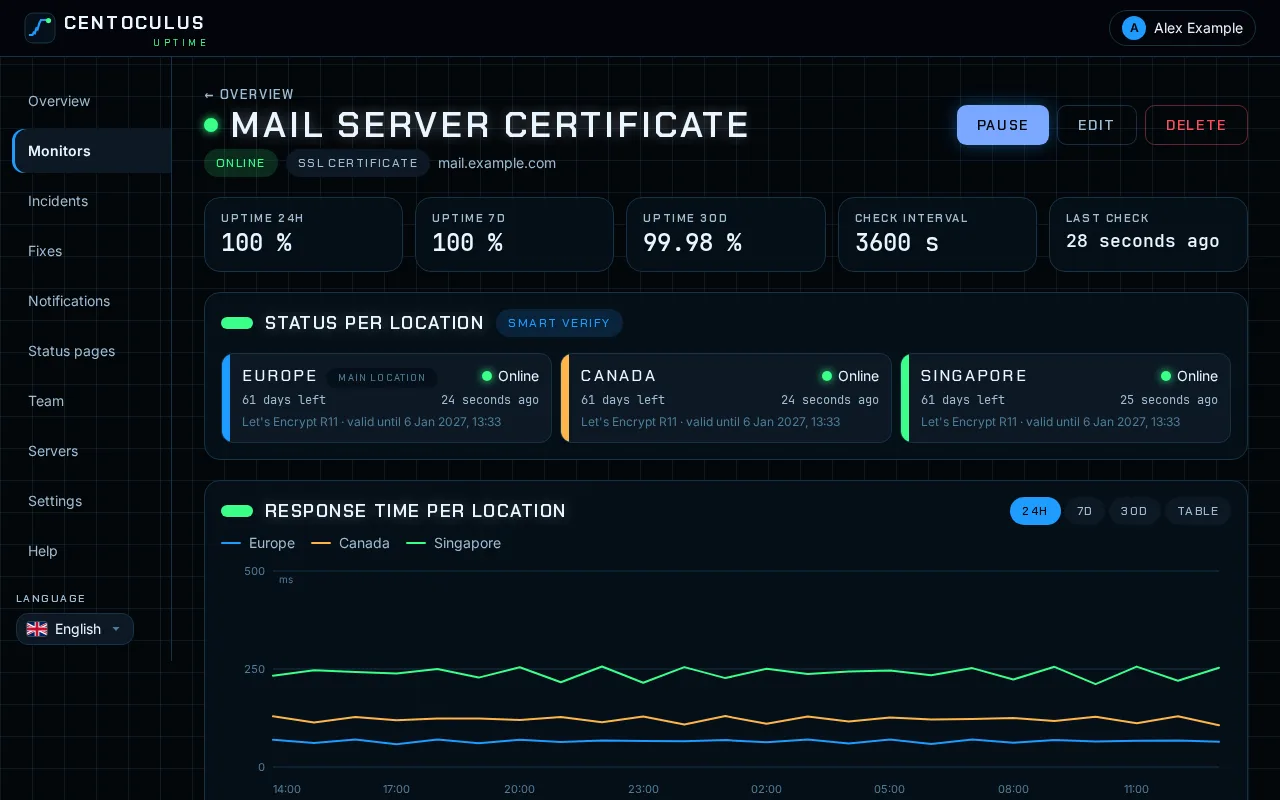
Click Create monitor. The monitor page shows per location the days left, the issuer and the expiry date.
Fields and defaults
| Field | What it does | Default |
|---|---|---|
| Host name or IP address | Server whose certificate is checked | – |
| Port | TLS port, 1 to 65535 | 443 |
| Different connection address | Connect here instead, host name stays the SNI | empty |
| Warn when fewer than … days left | Warning threshold, 1 to 90 | 14 |
| Critical when fewer than … days left | Critical threshold, 0 to 60 | 3 |
| Accept self-signed certificates | No alert for self-signed certificates | off |
| Check interval | How often the certificate is read | 1 hour, depending on your plan |
Frequently asked questions
Do I need an SSL monitor for my website?
No. The website monitor checks the certificate of https addresses by default. A separate SSL certificate monitor is only needed for services without a website, or if you want a different port or connection address.
How often is the certificate checked?
By default once an hour. Depending on your plan, certificates are checked at most once a day. The app shows the interval that applies to your plan.
Do SSL checks count separately?
Depending on your plan, the number of SSL checks can be limited. SSL monitors and certificate checks inside website monitors both count. When there is a limit, the form shows how many are in use.
What does "invalid certificate" mean?
The certificate could not be verified, for example because it has expired, does not match the host name, or is self-signed while self-signed certificates are not accepted. The guide on "Your connection is not private" explains each cause. The free SSL checker shows the details of any certificate.
Which locations check the certificate?
The same check locations as for other monitors. Each location shows its own result, so a location that gets an old certificate from a different server stands out.
Related
Free tool
SSL checkerMore help pages
- How to monitor a website with Centoculus
- How to monitor a host with ping in Centoculus
- How to monitor a TCP port with Centoculus
- How to monitor DNS records with Centoculus
- How to monitor a cron job with Centoculus
- How to check SPF, DKIM and DMARC with Centoculus
- How to test email delivery with Centoculus
- How to monitor a server with the Centoculus agent
- How to set up check locations and alerts in Centoculus