

How to monitor a host with ping in Centoculus
Short answer
A ping monitor in Centoculus sends ICMP echo requests to a host name or IP address from several check locations and reports the host as down when it stops answering. It shows the round-trip time and packet loss per location; you choose how many packets are sent per check and how long to wait for each.
Ping is the simplest check: does a server, router or other device on the network answer at all? It does not tell you whether a website or service works, only that the machine is reachable. Combine it with a website or port monitor for the services on it.
Step by step
1. Choose the check type Ping
Open Monitors, click New monitor and choose Ping.
2. Enter the host
Enter a host name or IP address, for example router.example.com. The host must be publicly reachable; private addresses are refused. Host names must resolve in DNS.
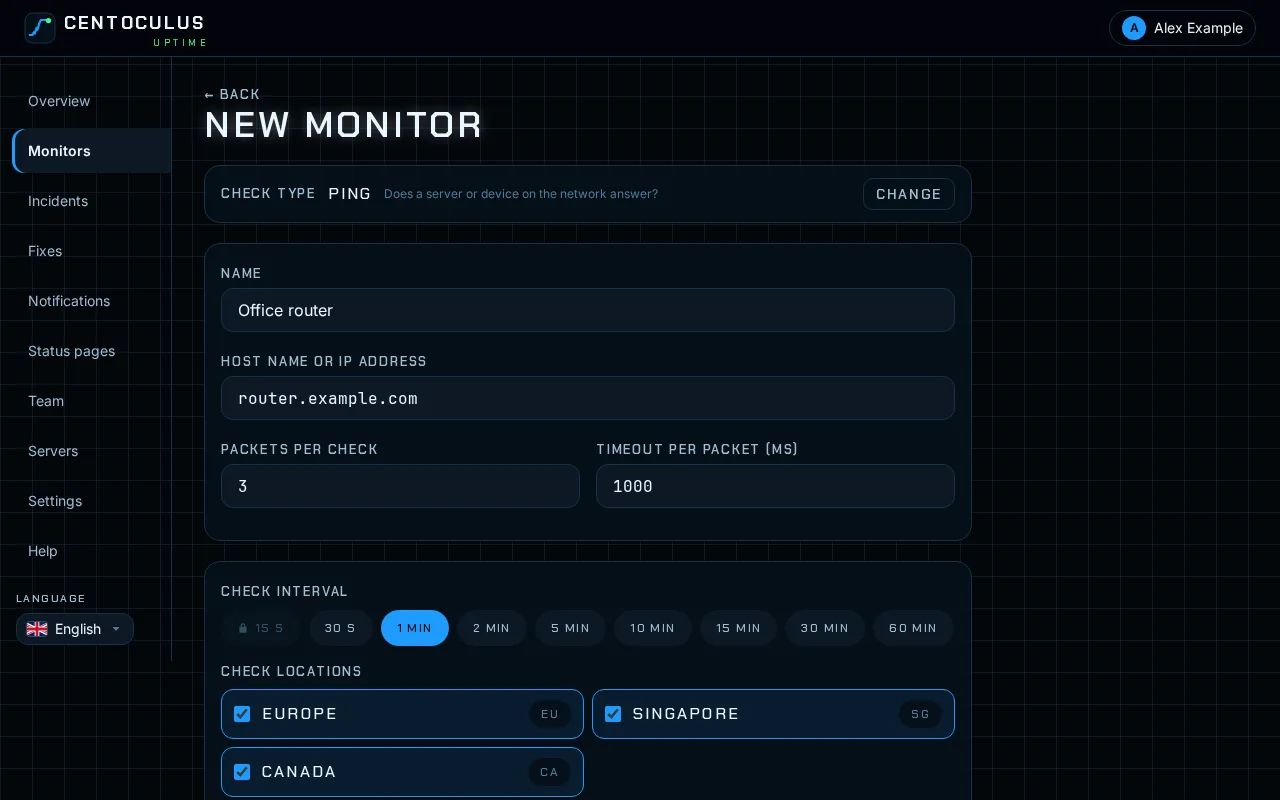
3. Set packets and timeout
Packets per check (1 to 10, default 3) is the number of echo requests per check. Timeout per packet (ms) (100 to 5000, default 1000) is how long the check waits for each answer. More packets give a steadier result on unstable links.
4. Choose interval and locations, then create
Pick the check interval and the check locations, then click Create monitor. The interval and the number of locations depend on your plan.
5. Read the results
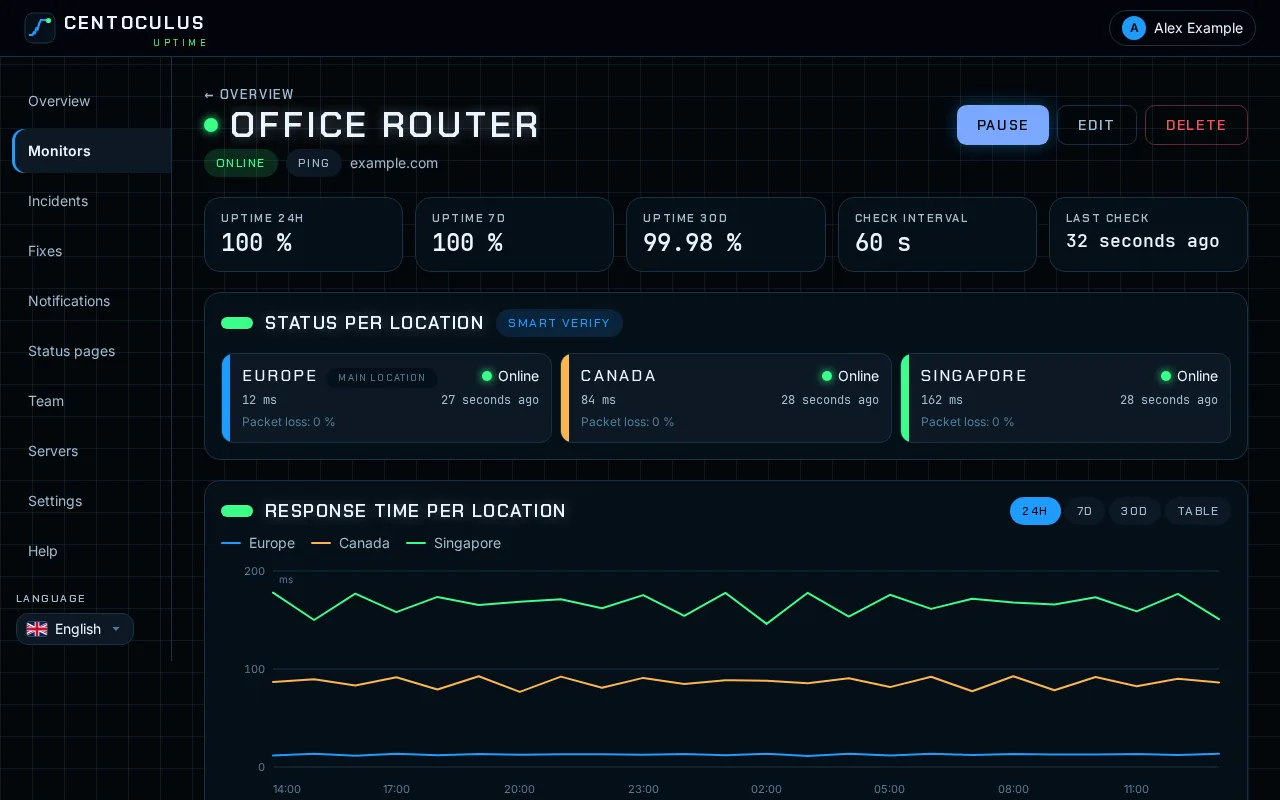
The monitor page shows per location the round-trip time and the packet loss, plus the response time over time.
Fields and defaults
| Field | What it does | Default |
|---|---|---|
| Host name or IP address | Target of the echo requests | – |
| Packets per check | Echo requests per check, 1 to 10 | 3 |
| Timeout per packet (ms) | Wait per answer, 100 to 5000 | 1000 |
| Check interval | How often the check runs | 1 minute, depending on your plan |
Frequently asked questions
The host is up, but the ping monitor says down. Why?
Many firewalls and cloud providers block ICMP echo requests. The host is then reachable for web traffic but does not answer ping. Allow ICMP echo from anywhere in the firewall, or monitor a port or website on the host instead.
What does packet loss mean?
The share of echo requests that got no answer in one check. Occasional loss on a single location usually points to the network on the way, not to your host. Loss on all locations at once points to the host or its uplink.
Ping or port monitor?
Ping shows that the machine answers. A port monitor shows that a service on it accepts connections, such as SSH or a database. If the operating system is up but the service crashed, only the port monitor notices.
Can I ping an IP address directly?
Yes. Enter the address instead of a host name. It must be a public address.
Related
Free tool
Website down checkerMore help pages
- How to monitor a website with Centoculus
- How to monitor SSL certificates with Centoculus
- How to monitor a TCP port with Centoculus
- How to monitor DNS records with Centoculus
- How to monitor a cron job with Centoculus
- How to check SPF, DKIM and DMARC with Centoculus
- How to test email delivery with Centoculus
- How to monitor a server with the Centoculus agent
- How to set up check locations and alerts in Centoculus